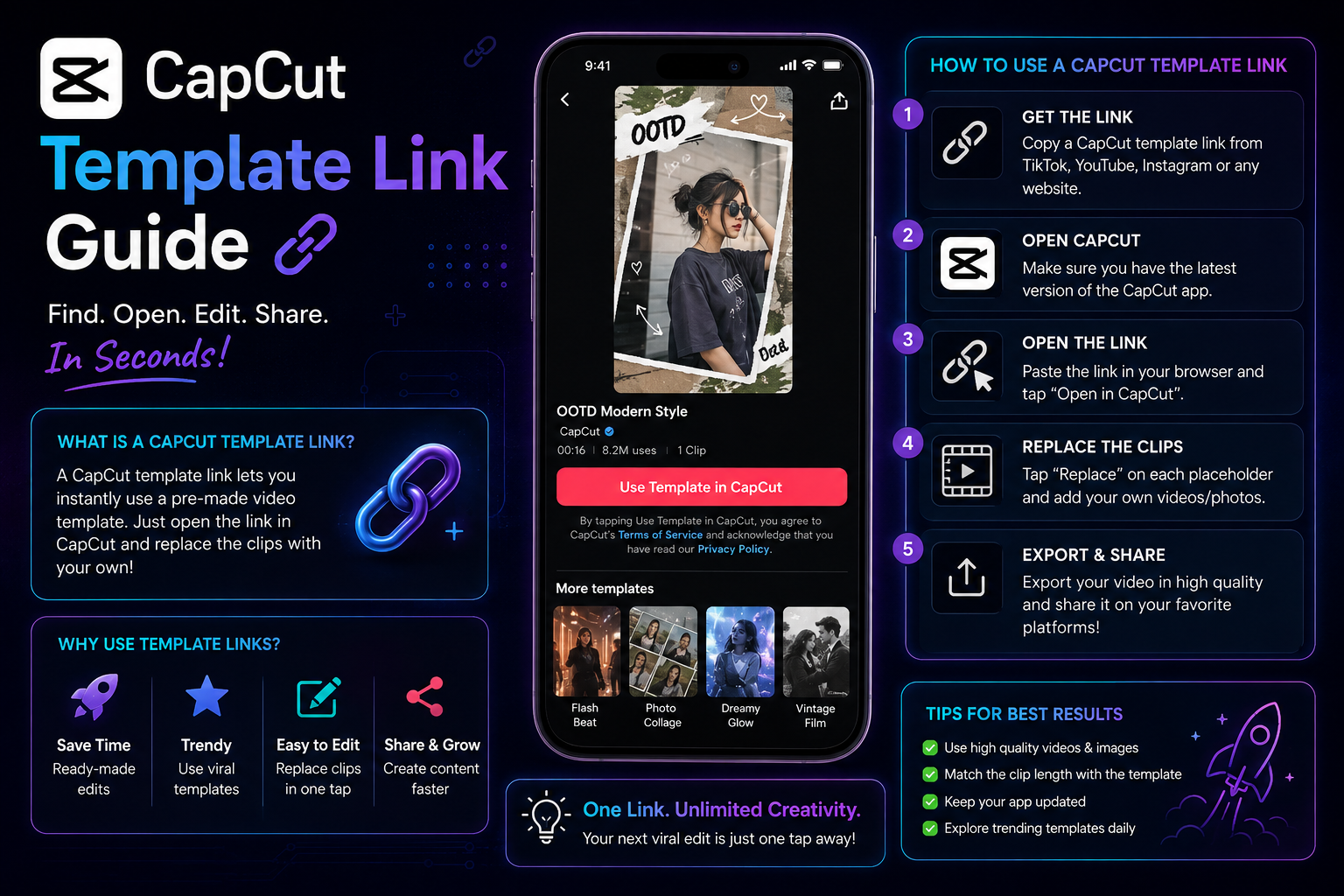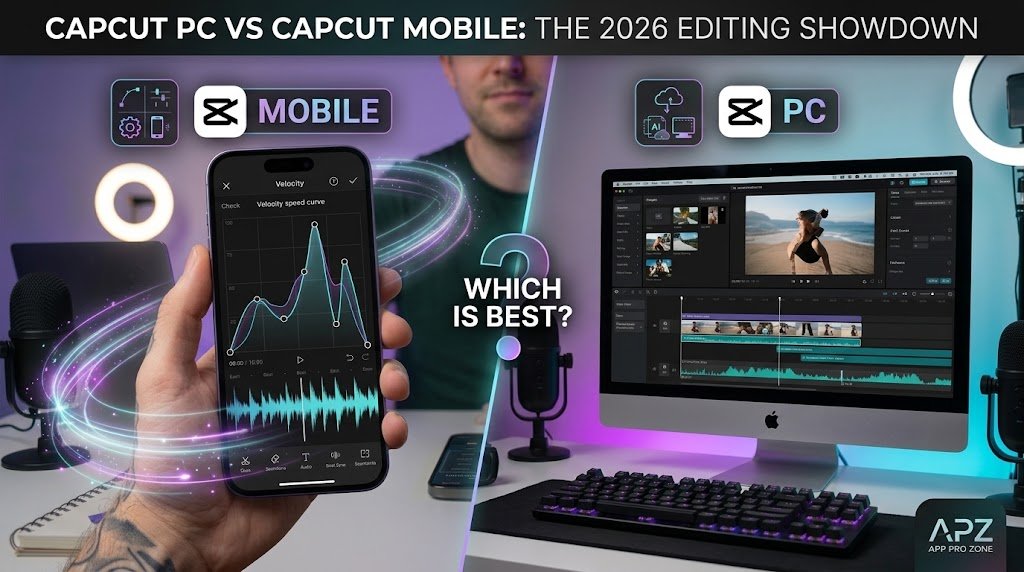
CapCut PC vs CapCut Mobile:
Here is the all detail about capcut pc vs capcut mobile .If you’re making content for TikTok, Instagram Reels, YouTube Shorts, or even putting together full-length YouTube videos, odds are pretty good CapCut is already part of your everyday workflow at this point. It’s kind of wild when you think about where it started — just a simple little app built for quick smartphone edits — and where it’s ended up now: a full-blown editing ecosystem that runs natively on Android, iOS, Windows, macOS, and even right in your browser if you want.
But that expansion across so many platforms has left a lot of creators wondering the same thing: do you stick with CapCut Mobile, the thing you already know, or is it finally time to move your whole workflow over to CapCut PC?
Here’s what’s interesting — both versions are pulling from the exact same asset library, the same sound catalog, the same underlying engine, all built by ByteDance. But actually sitting down and editing on each one? Completely different experience. The second you swap a touchscreen for a keyboard and mouse, everything shifts — how you navigate your timeline, how fast your hardware chews through heavier effects, even how precisely you can shape your speed curves.
So that’s what we’re actually doing in this guide — a real, deep comparison of CapCut PC against CapCut Mobile, covering every angle that matters. We’ll get into how comfortable each interface feels to actually use, how much raw processing power you’re working with, how much control you have over keyframes, what audio editing looks like on each, how quickly new AI features actually show up, what the pricing looks like, and how real creators are actually using each version day to day — so by the end, you’ll have a clear sense of which one actually fits how you like to work.
A Quick Side-by-Side Before We Dig Into the Details:
Before we get into the deeper technical breakdown, let’s just lay out how both versions stack up against each other on the core editing features, side by side:
| Feature / Capability | CapCut Mobile (Android / iOS) | CapCut PC (Windows / macOS) |
| Primary Controls | Touchscreen gestures, finger taps, sliders | Mouse, Trackpad & Keyboard Shortcuts |
| Timeline Layout | Single main track with stacked overlay layers | True Multi-Track NLE Timeline |
| Hardware Performance | Restricted by phone processor & battery heat | Dedicated GPU Acceleration & High System RAM |
| Trending Effects & Audio | Direct sync with TikTok trends and instant viral templates | Slightly delayed updates / Filtered library |
| Slow-Mo Frame Generation | Mobile Optical Flow AI (Can lag on high-end clips) | Desktop Optical Flow + GPU Acceleration |
| Keyframe Controls | Basic diamond nodes (+♦) directly on timeline | Advanced Keyframe Graph Curve Editor |
| Audio Editing | Automatic beat matching, basic volume & voiceover | Multi-channel mixing, Vocal Isolation, Waveform zoom |
| Export Options | 720p, 1080p, 2K/4K (Standard MP4/MOV) | 1080p, 4K, ProRES, Codec Selection, Custom Bitrate |
| Portability | Edit anywhere directly on your smartphone | Requires Laptop / Desktop Workstation |
1. The Interface, and Just How Much Screen Space You’re Actually Working With:
The first thing that hits you the moment you open CapCut on a computer instead of your phone is just how much more room you’ve suddenly got to breathe.
CapCut Mobile: Made for Fast, One-Handed Editing on the Go:
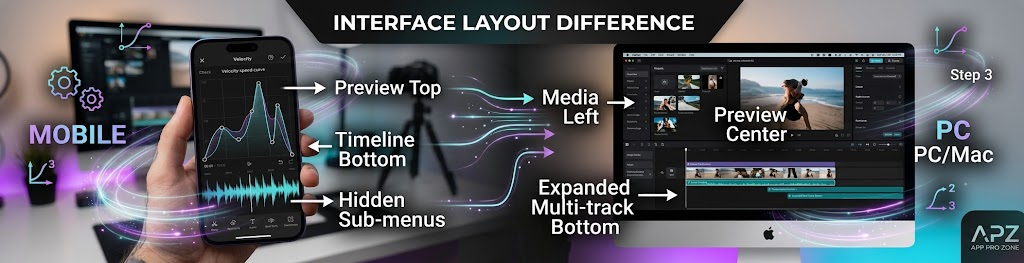
CapCut pc vs capcut mobile:CapCut Mobile was really built from the ground up with portrait mode and quick touch gestures in mind. Your video preview sits up top, taking up the upper half of the screen, while your timeline track and those horizontal toolbars live down below.
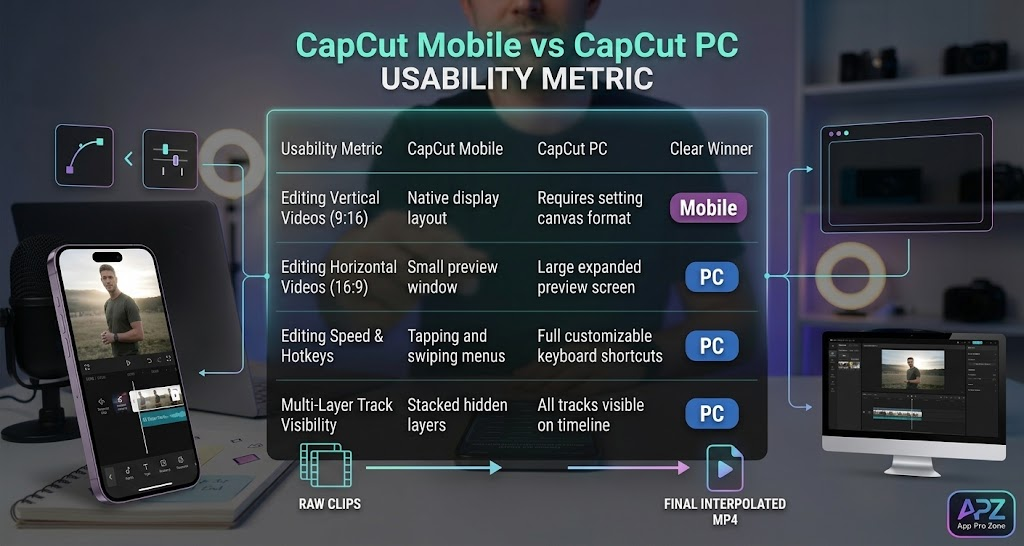
- Where it really shines: Honestly, it’s just genuinely easy to work with when you’re editing vertical content — 9:16 aspect ratio stuff. Pinching to scale your footage, swiping through filter options, tapping around between icons — all of it just feels quick and natural on a touchscreen.
- Where it starts to struggle: The moment your project grows past something simple — like just one video layer — things get cramped fast. Try juggling three video overlays, a couple of text layers, background music, and a handful of sound effects all on a 6-inch phone screen, and you’ll find yourself endlessly scrolling up and down and collapsing menus just to see what you’re doing.
CapCut PC: A Full Desktop-Grade Editing Setup:
Capcut pc vs capcut mobile:capcut pc basically takes that same structured layout you’d expect from proper NLE software — think Adobe Premiere Pro or DaVinci Resolve — and makes it approachable for everyday creators. Your screen gets split into distinct zones that actually make sense: your media library sits top-left, your video preview takes the center, a properties inspector runs along the right side, and a nice wide multi-track timeline stretches across the bottom.
- Where it really shines: You can actually see everything at once — your video, your text layers, your audio tracks, your adjustment layers — all laid out simultaneously, with nothing hidden behind some other menu. And on top of that, you get real keyboard shortcuts to speed things up: cutting a clip is as simple as
Ctrl + B, scrubbing through footage withJ/K/Lfeels instant, and trimming sections down to the millisecond becomes second nature pretty quickly. - Where it starts to struggle: If you’ve genuinely never touched desktop editing software before, it can feel a little less casual, a little less “just tap and go.” You’ll need a bit of time to get comfortable with all the different panels and where everything lives.
Here’s a rewritten version with a more natural, human voice — same length, same detail, same structure:
2. Hardware Performance, Rendering Speed, and How Heat Factors In
How well each version handles heavy video files, renders effects, and survives long editing sessions really just comes down to what hardware is sitting underneath it.
              HARDWARE PROCESSING PIPELINE
CAPCUT MOBILE ──► Mobile Processor (SoC) ──► Thermal Throttling / Lag
CAPCUT PC     ──► Dedicated GPU + System RAM ──► Smooth 4K Playback
Where Phone Hardware Starts to Hit Its Limits
Even the newest flagship phones out there — running Snapdragon chips, Apple’s A-series, or Google’s Tensor processors — still have to work within pretty tight thermal and battery constraints. So the moment you really push a phone hard — stacking multiple 1080p 60 FPS clips, layering speed ramps on top, throwing AI effects into the mix — a few things start happening:
- Thermal throttling kicks in: Your phone heats up fast, and once it does, the system automatically slows the processor down to protect itself from damage. What you feel on your end is choppy, laggy preview playback.
- RAM starts running out: Mobile operating systems are pretty aggressive about shutting down background apps and tasks once memory gets tight. And if you’re pushing something demanding like heavy Optical Flow slow-motion processing, you can sometimes find CapCut Mobile just crashing on you out of nowhere.
- Your battery takes a real hit: Rendering high-frame-rate effects burns through battery fast, and during a long editing session, that adds up quickly.
The Freedom You Get With Desktop Performance
CapCut PC, on the other hand, gets to tap into the real horsepower of dedicated desktop graphics — NVIDIA RTX cards, AMD Radeon, or Apple Silicon’s M-series chips with their unified memory setup.
- Smooth scrubbing through your timeline: You can play back raw 4K footage at a fluid 60 FPS without frames dropping out or having to sit there waiting for a preview to render.
- Much faster export times: Rendering out a 10-minute video packed with velocity curves, color grading, and motion blur takes a fraction of the time it would on a phone.
- Way more stability overall: CapCut PC just handles memory-heavy workloads better across the board, so you can edit demanding gaming footage without constantly worrying about a crash mid-session.
| Performance Metric | CapCut Mobile | CapCut PC |
| Handling 4K @ 60 FPS Clips | Noticeable lag, fast battery drain, device heating | Smooth playback with background proxy support |
| Practical Project Length | Ideal for clips under 3 to 5 minutes | Easily handles long-form videos of 30+ minutes |
| AI Slow-Mo Rendering Time | Slower (Relies on mobile processor) | Fast (Accelerated by dedicated GPU cores) |
| App Crash Risk | Moderate during heavy multi-layer edits | Low with system RAM management |
3. Speed Ramping, Keyframe Animation, and Just How Precise You Can Actually Get:
Both the mobile and PC versions let you do velocity editing, build speed curves, and track keyframe positions — that part’s the same. But how much fine control you actually have over these tools ends up being a completely different story, and it really just comes down to what device you’re controlling it with.
Speed Ramping and Bending Those Curves:
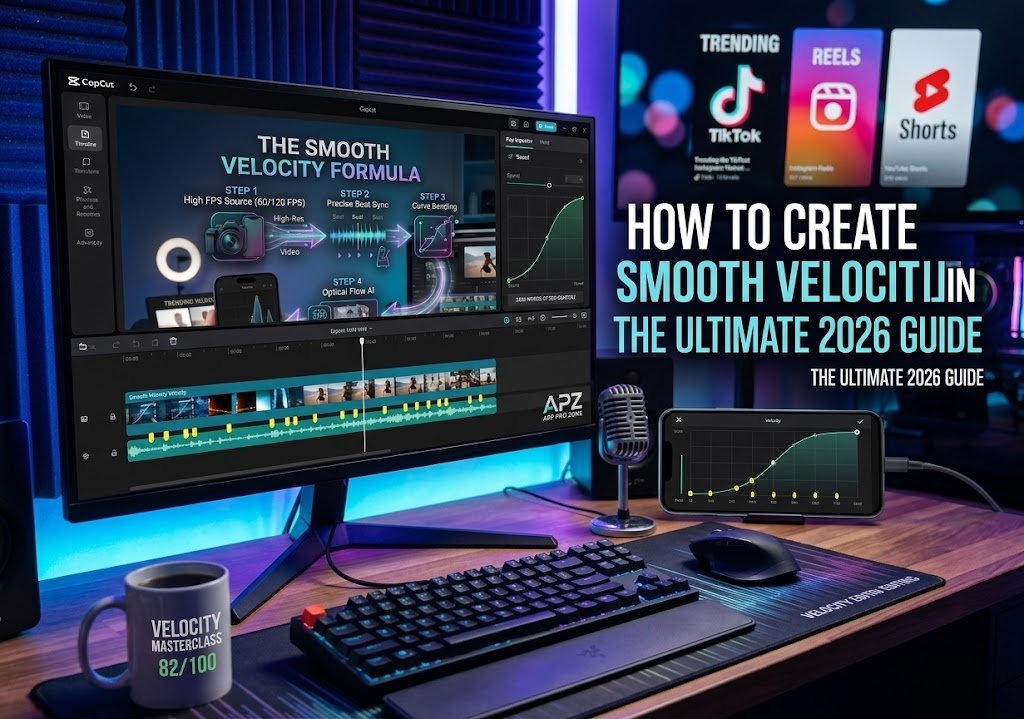
- On mobile: Editing your speed curve here means dragging small circular nodes around a tiny graph using your fingers. It’s easy enough to pick up right away, but the moment you need something precise — say, holding a clip at exactly 0.2x speed for exactly 0.4 seconds — it starts feeling genuinely frustrating on a small phone screen. Your finger just isn’t as accurate as you need it to be sometimes.
- On PC: Here, you’re clicking with a mouse to drop nodes exactly where you want them along the speed graph, dragging bezier handles to smoothly shape how fast your acceleration or deceleration slopes are, and you can clearly see the exact playback multiplier at every point. It’s just a completely different level of control.
Fine-Tuning Your Keyframe Graphs:
Keyframes are what let you animate position, scale, rotation, and opacity over time, manually.
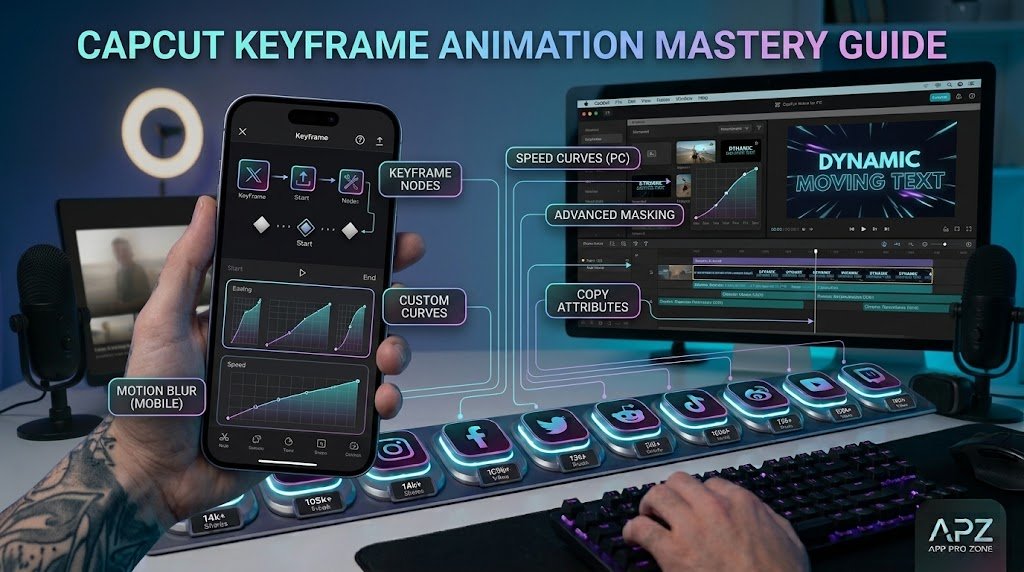
- On mobile: CapCut Mobile gives you standard linear keyframing — that little
+♦icon. You basically just mark a Point A and a Point B, and the app moves your clip in a straight line between them. Nothing fancy. - On PC: CapCut PC steps things up with an actual advanced Keyframe Speed Graph editor. This means you can build in custom easing curves — Ease In, Ease Out, even elastic-style drops — between your keyframes. That extra layer of control is what makes digital zooms, camera pans, and motion graphics actually look smooth and natural, instead of robotic and stiff.
| Editing Precision | CapCut Mobile | CapCut PC |
| Speed Curve Node Tuning | Finger drag on screen | Precise mouse node placement & curve handles |
| AI Optical Flow Quality | Standard & Better Quality options | Faster rendering with GPU acceleration |
| Keyframe Graph Customization | Basic linear transitions | Fully customizable Bezier velocity curves |
| Motion Tracking Accuracy | Subject & Face tracking | Precise object, camera, and zone tracking |
4. Audio Control, Beat Syncing, and Sound Design:
A high-energy edit is only as good as its audio design.
How Audio Editing Works on CapCut Mobile:
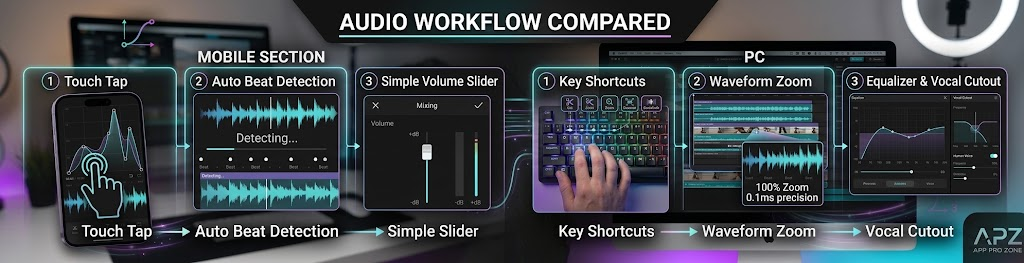
- Instant TikTok music syncing: Mobile links straight into your TikTok account. So any trending sound or song you’ve saved while just scrolling through TikTok? It shows up right away in CapCut Mobile’s sound tab, no extra steps needed.
- Automatic beat detection: Just tap the Beats icon and it’ll scan through your audio waveform, dropping yellow marker dots right on the major drum hits. From there, syncing your video cuts to the music becomes a quick, visual thing — takes seconds, really.
- Quick voiceover recording: You can just use your phone’s built-in mic to record commentary on the fly, straight over your timeline, without needing any extra equipment.
How Audio Editing Works on CapCut PC:
- Bigger, expanded waveforms: CapCut PC lets you stretch your audio track taller, vertically. That gives you a much clearer view of subtle spikes in the audio, pauses in someone’s speech, or quiet background noise you might’ve otherwise missed.
- Better vocal isolation: Desktop’s audio processing comes with cleaner noise reduction and stronger vocal isolation, so you can pull voices apart from background tracks without ending up with harsh, obvious artifacts.
- Multi-channel sound mixing: You get to organize your background music, sound effects, voiceovers, and gaming audio onto their own separate channels, and adjust the decibel gain on each one independently until the whole mix feels balanced.
5. Viral Templates, Trending Effects, and How Fast New AI Features Actually Show Up:
ByteDance is constantly pushing out updates to CapCut — new editing tools, fresh AI capabilities, whatever’s trending visually at the moment. But which platform gets those updates first depends a lot on where you’re editing.
Why Mobile Tends to Get Social Trends First:
Since CapCut Mobile is so tightly woven into TikTok’s whole ecosystem, new viral trends, body effects, face filters, and one-tap editing templates almost always land on mobile before anywhere else.
- Auto Velocity presets: Mobile gets these one-tap AI velocity styles that are specifically tuned for dance clips, workout content, and whatever’s currently going viral.
- Trending visual effects: Things like body outlines, glowing neon trails, and AI body morphs — these all tend to roll out on mobile first, and fast.
- Direct TikTok template integration: While you’re scrolling TikTok, tapping “Use Template in CapCut” just instantly opens the mobile app and auto-fills your media right into that viral format — no manual editing needed on your part.
CapCut PC: Where the More Practical AI Tools Show Up:
While mobile’s grabbing the fun face filters and viral templates first, CapCut PC tends to prioritize the more production-focused AI tools that serious content creators actually need:
- Automated captions: Generates accurate subtitles straight from your video’s dialogue, complete with custom fonts, animated styles, and one-click subtitle presets.
- Smart cutout and chroma key: Cleaner background removal, with much finer control over edge smoothing.
- AI text-to-video and image generation: Direct hookups to cloud-based AI generation tools, letting you pull in stock graphics, overlays, and background textures on the fly, right inside your project.
6. Subscriptions, Pricing, and What You Actually Get With CapCut Pro:
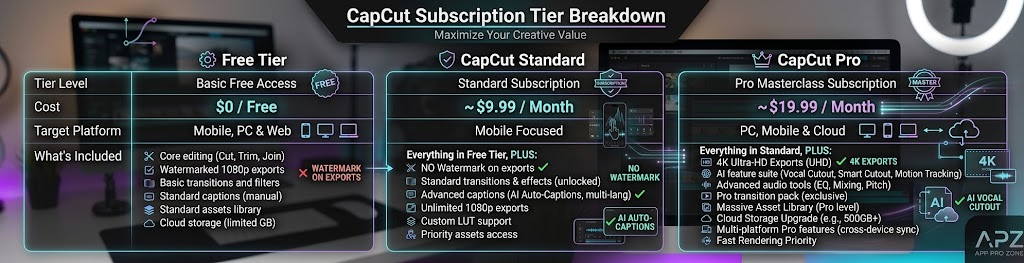
CapCut runs on a freemium setup — a genuinely solid free version, alongside a paid CapCut Pro plan for anyone who wants more.
CAPCUT SUBSCRIPTION TIER STRUCTURE
FREE TIER ──► 1080p Exports, Core Tools, Free Effects/Templates
STANDARD ──► Mobile Template Watermark Removal, Basic Pro Assets
PRO PLAN ──► 4K Exports, Full AI Suite, 100GB Cloud, PC + Mobile
Free Version Capabilities:
The free tier across both CapCut Mobile and CapCut PC remains solid:
- Access to full multi-track timeline editing.
- Standard speed ramping, speed curves, keyframing, and cropping.
- Clean 1080p exports without watermarks on custom manual edits.
CapCut Subscription Tier Breakdown:
A Money-Saving Tip Worth Knowing:
If you ever decide to upgrade to CapCut Pro, here’s something worth keeping in mind: subscribing directly through CapCut’s official website, in a web browser, will often end up cheaper than subscribing through the app stores on your phone. That’s mostly because purchases made through the app stores get hit with commission fees, and web purchases just skip that entirely.
7. Real Creator Workflows — Which Version Actually Fits You?
Instead of trying to figure out which piece of software is “better” overall — because honestly, that’s kind of the wrong question — what you really want to ask is: which version actually lines up with what you’re trying to create?
CHOOSE YOUR CREATIVE PATH
TikToks / Reels / Story Clips ──► CAPCUT MOBILE
Gaming Edits / YouTube / 4K Clips ──► CAPCUT PC
Ultimate Workflow ──► HYBRID WORKFLOW (Cloud Sync)
Stick With CapCut Mobile If…
- You’re making quick vertical videos: You’re putting together short 9:16 content for TikTok, Instagram Reels, or YouTube Shorts.
- You edit while you’re out and about: You shoot, put together, and post your videos straight from your phone, wherever you happen to be.
- You lean on viral templates a lot: You like using those popular one-tap templates and trending audio tracks straight out of TikTok.
- Your edits stay short and simple: Your projects usually run under 60 seconds and don’t really need heavy color grading or a bunch of layered timeline tracks.
Time to Upgrade to CapCut PC If…
- You’re making longer-form content: Think YouTube vlogs, tutorials, podcasts, or horizontal 16:9 videos running past the 5-minute mark.
- You’re editing gaming montages: You’re working with high-frame-rate gameplay footage — PUBG Mobile, Call of Duty, Valorant, that kind of thing — and it needs tight beat syncing, custom velocity curves, and AI Optical Flow slow-motion.
- You want the best visual quality possible: You need high export bitrates, real 4K clarity, custom codecs, and full control over your color grading.
- You just work faster on a desktop: You edit quicker with mouse precision, dual monitors, and your own custom keyboard shortcuts.
The Hybrid Approach — Using Mobile and PC Together With Cloud Sync:
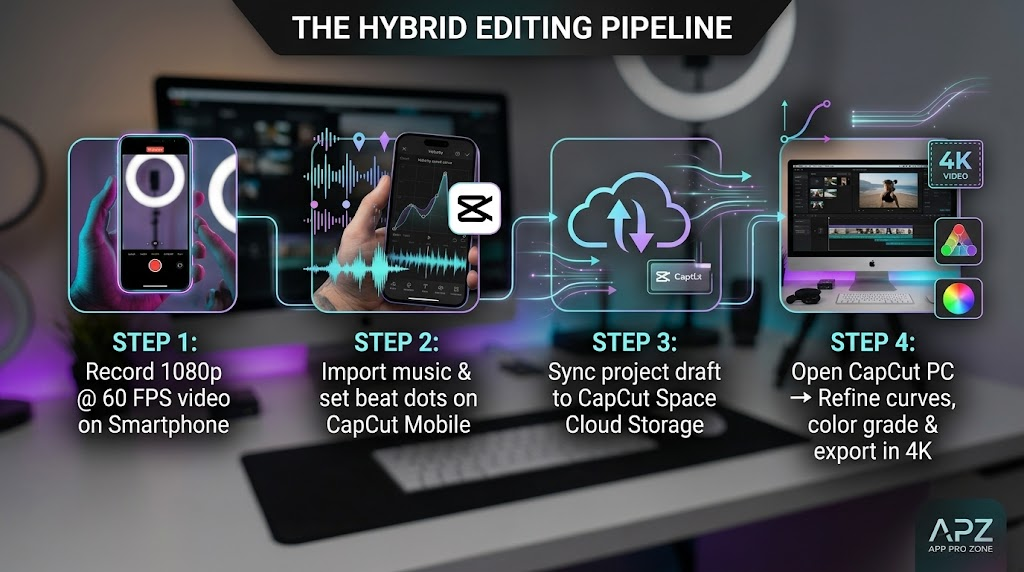
Here’s the good news, though — you don’t actually have to pick one and commit forever. CapCut’s Space Cloud Syncing feature means you can start an edit on your phone while you’re out traveling, and then pick it right back up on your desktop later to finish it off properly.
Setting Up Your Hybrid Workflow, Step by Step:
- Rough cut on mobile: Shoot your clips at 1080p, 60 FPS, right on your phone. Open up CapCut Mobile, start a new draft, drop your trending music track in, and use the Beats tool to mark your downbeats with those yellow markers.
- Sync it up to the cloud: Head back to your project list, tap the three dots sitting next to your draft, and select Upload to Space.
- Fine-tune and render on PC: Fire up CapCut PC, head over to the Space tab, and pull up that same synced project. From there, refine your velocity curves, layer in motion blur, turn on GPU-accelerated Optical Flow, and export out a genuinely smooth 60 FPS video.
CapCut PC vs CapCut Mobile:
When choosing the right video editor, comparing CapCut PC vs CapCut Mobileis essential for every content creator. Understanding the core workflow differences between CapCut PC vs CapCut Mobile helps you decide which device fits your editing speed. If you prioritize touch control, CapCut PC vs CapCut Mobile clearly shows how mobile offers quick edits on the go. However, analyzing performance in CapCut PC vs CapCut Mobile proves that desktop hardware handles heavy 4K timelines much smoother. Many timeline editors debate CapCut PC vs CapCut Mobile when working on complex speed curves and velocity effects. In terms of screen space, CapCut PC vs CapCut Mobile highlights how multi-monitor setups elevate precision. Beginners often test CapCut PC vs CapCut Mobile to see which platform feels more user-friendly. When looking at export speeds, evaluating CapCut PC vs CapCut Mobile reveals how GPU acceleration speeds up rendering time. TikTok creators discussing CapCut PC vs CapCut Mobile usually prefer mobile for instant uploading, whereas cinematic editors analyzing CapCut PC vs CapCut Mobile lean toward the desktop version. Feature accessibility in CapCut PC vs CapCut Mobile remains almost identical, but keyboard shortcuts make CapCut PC vs CapCut Mobile far more efficient for long projects. Testing color grading across CapCut PC vs CapCut Mobile gives desktop the advantage due to better monitor calibration. Ultimately, studying CapCut PC vs CapCut Mobile comes down to personal convenience and hardware power. Every creator reviewing CapCut PC vs CapCut Mobile agrees that both versions complement each other perfectly. Whether you favor CapCut PC vs CapCut Mobile for quick TikTok clips or CapCut PC vs CapCut Mobile for full YouTube tutorials, mastering CapCut PC vs CapCut Mobile will instantly upgrade your overall editing workflow.Deciding between editing platforms often comes down to comparing CapCut PC vs CapCut Mobile based on your personal needs. If you shoot short reels on your smartphone, analyzing CapCut PC vs CapCut Mobile shows how quick and convenient the touch app is. On the other hand, looking at CapCut PC vs CapCut Mobile for long-form tutorials reveals the massive advantage of desktop GPU power. Many gameplay editors discussing CapCut PC vs CapCut Mobile prefer the desktop layout because multi-track timelines feel much easier to manage with a mouse. When it comes to feature updates, evaluating CapCut PC vs CapCut Mobile proves that both platforms stay closely updated with trending effects. Creators who test CapCut PC vs CapCut Mobile usually keep both installed for maximum flexibility. Ultimately, examining CapCut PC vs CapCut Mobile shows that mobile wins on portability, while CapCut PC vs CapCut Mobile remains the superior choice for heavy video rendering.
So, Final Verdict — Which One Should You Actually Use in 2026?
Honestly, neither version is “better” in some absolute sense — they’re just built for different jobs, different creative needs.
- CapCut Mobile is basically the perfect app for knocking out quick, viral, short-form content straight from your phone, no extra steps needed.
- CapCut PC is a genuinely full-featured desktop editor, giving you the speed, the performance, the clear timeline view, and the export control you actually need for longer videos and high-frame-rate gaming montages.
So if you’re mostly editing quick, casual reels, CapCut Mobile really does give you everything you need, right in your pocket. But if you’re after full control over your speed curves, faster render times, and a cleaner, more organized multi-track editing space, then CapCut PC is genuinely worth the switch.